
What Is an Urdu Keyboard?
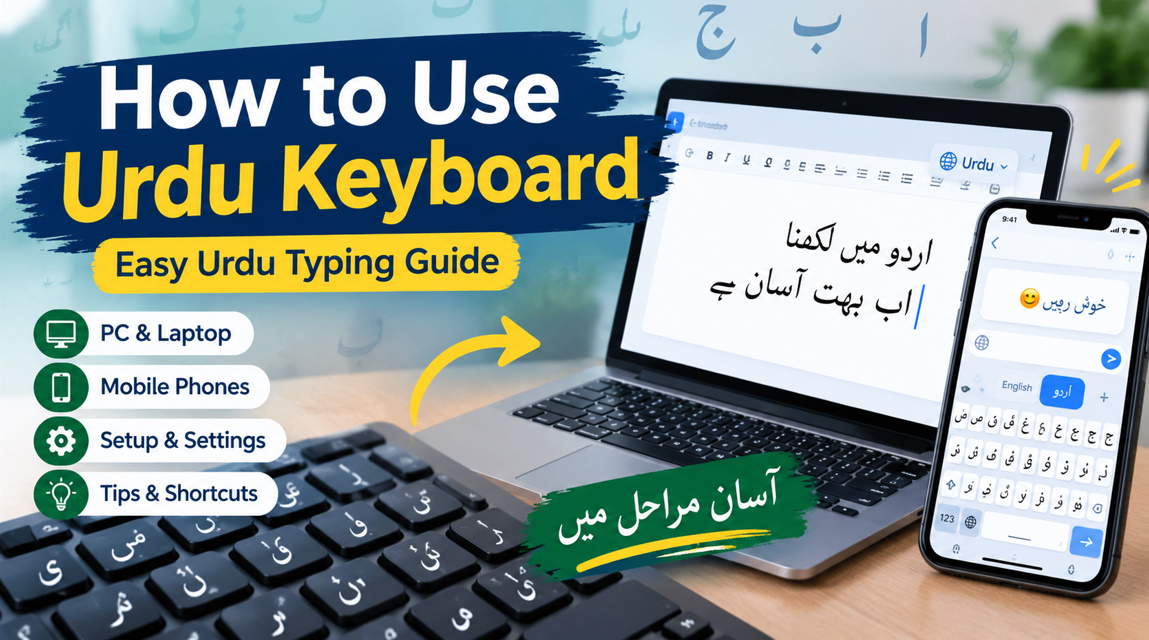
Use of Urdu keyboard is a digital typing tool that allows users to write Urdu characters on smartphones, tablets, laptops, and desktop computers. It supports the Urdu alphabet, including letters such as ا، ب، پ، ت، ٹ، ث and other commonly used characters. Urdu keyboards may use different layouts and input methods.
Learning Urdu typing is useful for students, writers, teachers, bloggers, and anyone who communicates in Urdu. Modern keyboards make it easy to switch between Urdu and English without installing complicated software. Depending on your device, you can use a built-in keyboard, virtual keyboard, phonetic layout, or traditional Urdu keyboard layout.
- Supports Urdu letters
- Works on phones
- Works on computers
- Offers language switching
- Supports Urdu punctuation
- Enables faster typing
- Useful for Urdu writing
- Can support phonetic input
How to Enable Urdu Keyboard on Android
Most Android devices allow you to add Urdu through the keyboard’s language settings. Open your keyboard settings, select languages, and look for Urdu. After adding it, you can switch between English and Urdu while typing messages, documents, searches, and social media posts.
The exact menu names can differ depending on the phone manufacturer and keyboard application. Once Urdu is enabled, the keyboard normally displays Urdu characters when you select the Urdu language. You can also change the keyboard layout or enable features such as autocorrect, suggestions, and multilingual typing.
- Open keyboard settings
- Select Languages
- Choose Urdu
- Add the language
- Select an Urdu layout
- Open any text field
- Switch languages
- Start typing
How to Use Urdu Keyboard on iPhone
iPhone users can add Urdu from the device’s keyboard settings. Go to the keyboard section under Settings, select the option to add a new keyboard, and choose Urdu. After installation, Urdu becomes available whenever you type in messages, notes, browsers, email, or other supported applications.
To switch languages, use the language or globe button on the keyboard. Depending on your selected configuration, you can move between Urdu and English quickly. This makes bilingual typing convenient when you need to combine Urdu words, English terms, numbers, and symbols in the same message.
- Open Settings
- Select General
- Open Keyboard
- Add a new keyboard
- Select Urdu
- Open a text field
- Tap the language button
- Begin Urdu typing
How to Use Urdu Keyboard on Windows
Windows provides language and keyboard options that allow users to type Urdu without relying entirely on third-party software. Open Windows language settings and add Urdu as a preferred language or keyboard option. After installation, you can switch between available keyboard languages using the language indicator or keyboard shortcut.
Once Urdu is selected, the physical keyboard produces Urdu characters according to the chosen layout. Beginners may initially need time to remember character positions. Practicing common Urdu letters and words can gradually improve typing speed, accuracy, and familiarity with the Urdu keyboard layout.
- Open Windows Settings
- Select Time & Language
- Add Urdu
- Choose a keyboard
- Switch input language
- Open a text editor
- Practice common letters
- Save frequently used phrases
Urdu Phonetic Keyboard vs Traditional Layout
An Urdu phonetic keyboard allows users to type Urdu based on familiar English keyboard sounds. For example, users can enter Romanized combinations that correspond to Urdu letters. This method can be easier for beginners who already know English keyboard positions but are not familiar with the traditional Urdu layout.
A traditional Urdu keyboard places characters according to a dedicated keyboard arrangement. It can be useful for professional Urdu typists who need consistent access to Urdu letters, symbols, and punctuation. Choosing between phonetic and traditional typing depends on your experience, purpose, preferred workflow, and typing habits.
- Phonetic typing uses sounds
- Traditional layouts use fixed positions
- Phonetic input suits beginners
- Traditional layouts suit trained typists
- Both support Urdu writing
- Layouts may vary
- Practice improves accuracy
- Choose based on comfort
How to Type Urdu Faster and More Accurately
Improving Urdu typing requires regular practice rather than simply memorizing every character at once. Start with frequently used letters and short words, then gradually practice complete sentences. Pay attention to letter shapes, spacing, punctuation, and the correct placement of characters while typing.
You can improve Urdu typing speed by practicing consistently and reducing dependence on visual searching. Keep commonly used words in mind and learn where important letters are located. Urdu typing tools with word suggestions can also help, but manually checking unfamiliar words improves accuracy and language familiarity.
- Practice every day
- Start with short words
- Learn common letters
- Focus on accuracy
- Reduce keyboard searching
- Practice full sentences
- Review spelling
- Increase speed gradually
Common Urdu Keyboard Problems and Solutions
Beginners sometimes encounter problems such as incorrect characters, missing Urdu letters, unexpected keyboard switching, or Urdu text appearing incorrectly in an application. These issues can result from language settings, incompatible applications, incorrect keyboard layouts, or outdated software rather than the Urdu keyboard itself.
If Urdu characters do not appear correctly, check that Urdu is properly installed and selected as the active input language. Restarting the application or device may also help. When using a website or document editor, make sure the selected font supports Urdu script and right-to-left text.
- Check language settings
- Confirm Urdu is enabled
- Verify the keyboard layout
- Restart the application
- Update keyboard software
- Use Urdu-compatible fonts
- Check right-to-left support
- Test another text field
Best Practices for Urdu Keyboard Typing
The best way to use an Urdu keyboard is to combine the right layout with consistent practice. Choose a keyboard that feels comfortable, keep Urdu readily available, and learn the characters you use most often. Whether you write social media posts, assignments, articles, messages, or professional documents, consistency makes typing easier.
For better Urdu typing, understand how your keyboard handles punctuation, spaces, numbers, and special characters. When working with longer documents, use an Urdu-supported editor and check the final text for spelling and formatting. With regular practice, beginners can develop smoother Urdu typing skills across multiple devices.
- Choose a comfortable layout
- Practice common vocabulary
- Learn Urdu punctuation
- Check spelling carefully
- Use right-to-left formatting
- Keep language switching accessible
- Practice on multiple devices
- Review finished text